Capture the moment
Open Live Photo Camera, choose Live Photo mode and the motion duration, then tap the shutter once. Keep the phone steady and stay in the app until saving finishes.
LIVEPHOTO CAMERA SUPPORT
Clear answers for capturing, saving, viewing, sharing, and managing Live Photos on Android.
Updated for app version 1.4.7 · July 15, 2026
Live Photo is stored as an Android Motion Photo. Playback and wallpaper options can vary by phone and gallery app.
THE BASICS
LivePhoto Camera is an Android camera and editor for capturing short moments as Live Photos. On Android, the result is saved as a Motion Photo: a JPEG cover image with a short MP4 clip embedded in the same file.
A compatible gallery shows the cover first and plays the movement on demand. This is why thumbnails look still, why some apps show only a photo, and why exporting as video is the most reliable way to share motion across platforms.
QUICK START
Use this workflow the first time you create a Live Photo. It also helps identify whether a problem happened during capture, playback, or sharing.
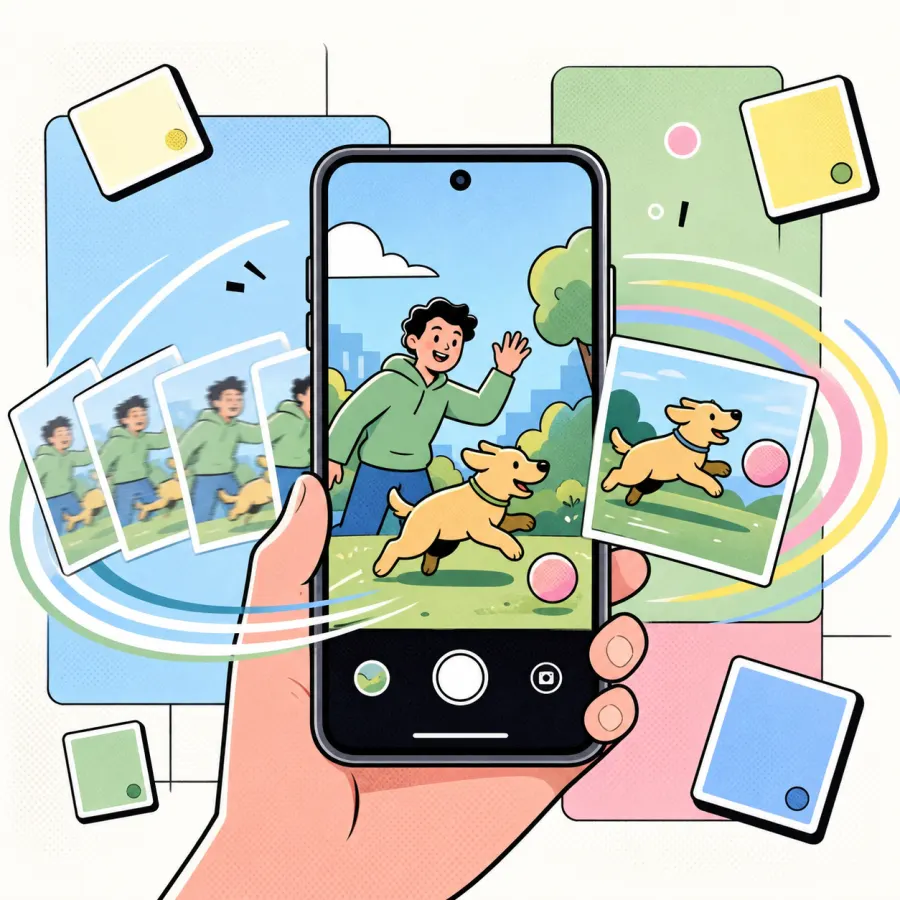
Open Live Photo Camera, choose Live Photo mode and the motion duration, then tap the shutter once. Keep the phone steady and stay in the app until saving finishes.
Open the saved file in Google Photos or another Motion Photo-compatible gallery. Tap the Motion or Play control, or press and hold the photo, depending on the viewer.
Share the original Motion Photo only when the receiving app supports it. For messaging, social media, or another operating system, export a video to preserve the movement reliably.
FAST DIAGNOSIS
Start with the symptom you can see. Most reports fall into one of these capture, viewing, or sharing cases.
The viewer does not support Android Motion Photos.
Open the original in Google Photos and use its Motion or Play control.
The receiving app recompressed the JPEG or removed the embedded MP4.
Share the original file, or export it as video for broad compatibility.
Camera or microphone permission is off, another app is using the camera, or storage is low.
Check permissions and storage, close other camera apps, then reopen LivePhoto Camera.
Camera processing can differ by device, lens, aspect ratio, or filter.
Test the rear camera in good light with the default ratio and no filter.
Live Photo uses video-style capture, so single-photo flash may not be available.
Use the rear camera and select Torch before shooting when continuous light is needed.
COMPATIBILITY
LivePhoto Camera creates the motion file, but Android, gallery apps, sharing services, and phone manufacturers decide how that file can be played or used.
LivePhoto Camera supports Android 7.0 and newer. Camera lenses, flash behavior, available aspect ratios, and live-wallpaper destinations can still vary by device.
Google Photos is the recommended first check. Some manufacturer galleries display only the JPEG cover even when the embedded motion clip is intact.
A receiving app must preserve Motion Photo metadata to keep it live. Wallpaper choices, including whether the lock screen is available, are controlled by the phone system.
FREE & VIP
You can test the core camera and many editing tools for free before deciding whether you need unlimited exports or PRO content.
The price, billing period, trial terms, and renewal details shown by Google Play before confirmation are the terms that apply. A lifetime purchase is a one-time purchase and does not renew.
DETAILED ANSWERS
Search all help topics or filter them by capture, troubleshooting, purchases, and permissions.
Open Live Photo Camera from the home screen, choose Live Photo mode, then tap the shutter once. Keep the phone steady until the saving screen finishes.
The default motion length is 1.5 seconds. Tap the duration control to choose a clip from 0.5 to 15 seconds before shooting.
This is often a viewing issue, not a missing video. A Live Photo is one JPEG cover image with a short MP4 clip embedded inside it, so thumbnails always look still.
Open the file in Google Photos or a gallery that supports Motion Photos, then tap Motion/Play or press and hold the photo. Some manufacturer gallery apps display only the cover image even when the motion data is present.
Live Photos are saved to DCIM/LivePhoto Camera and normally appear in your system gallery. Their filenames start with LivePhoto and end in _MP.jpg.
If a new file does not appear, wait for saving to finish, check available storage, and make sure Photos and videos access is allowed for the app.
First update LivePhoto Camera from Google Play. Then check that Camera and Microphone permissions are enabled, close other apps that may be using the camera, and reopen LivePhoto Camera.
Camera processing differs across Android devices. Update to the latest app version, try the rear camera with the default aspect ratio, remove filters, and take one test photo in good light.
Do not switch apps or lock the screen while the Live Photo is recording or saving. If the preview looks correct but the saved result is still damaged, send Feedback with the time of the test so the device-specific camera issue can be investigated.
Live Photo capture records a short video, so flash behavior is different from a single still photo and varies by camera hardware. Use the rear camera and select Torch before shooting when you need continuous light.
The front camera has no hardware flash; the app uses the screen fill light instead. Some phones do not expose a compatible torch during video-style capture.
Choose a Live Photo or video, tap Set as Wallpaper, adjust its crop and scale in the preview, then confirm in the Android system wallpaper screen.
Your phone must support Android live wallpapers. Some manufacturers allow live wallpaper only on the home screen, while others also offer a lock-screen option. The final choices are controlled by your phone system.
You can capture, preview, and try many editing tools for free. Free users have a daily export allowance. After the free allowance is used, the app may offer a rewarded video for another export; after the daily limit, unlimited export requires VIP.
Some filters, fonts, stickers, and effects are marked PRO. You may be able to preview them, but exporting a project that uses PRO content requires VIP. VIP also removes ads. The price and billing period shown by Google Play before you confirm are the terms that apply to your purchase.
Make sure Google Play is signed in to the same Google account used for the purchase. Open any VIP screen in LivePhoto Camera and tap Restore. Keep an internet connection while Google Play checks your subscription or lifetime purchase.
If Restore does not work, restart the app and try again. Then send Feedback and include the Google Play order number; never include a password or payment card number.
Subscriptions are managed by Google Play, not by uninstalling the app. Open Google Play → profile picture → Payments & subscriptions → Subscriptions → LivePhoto Camera → Cancel subscription.
You can normally keep VIP access until the end of the paid billing period. A lifetime purchase is a one-time purchase and does not renew.
Camera is required to take photos and video. Microphone records sound with Live Photos and video. Photos and videos access lets you import media and save exports to your gallery.
Display over other apps is used only for the optional Floating Light Card. Notifications are optional reminders. You can change any permission in Android Settings → Apps → LivePhoto Camera → Permissions, but disabling a required permission will stop its related feature.
Camera capture, editing, conversion, and export are processed on your device. Internet access is still used for Google Play billing, ads, app updates, online sticker content, and related service features.
Still need help?
In the app, open Settings → Feedback. Please describe what you tapped, what happened, and what you expected. Your device model, Android version, and app version are added automatically.