How to Take Live Photos on Android
Most Android phones can shoot moving photos — the feature is just hidden under different names. Below is how to turn it on for every major brand, plus what to do if your phone doesn’t have it and how to share Live Photos with an iPhone.
Quick answer
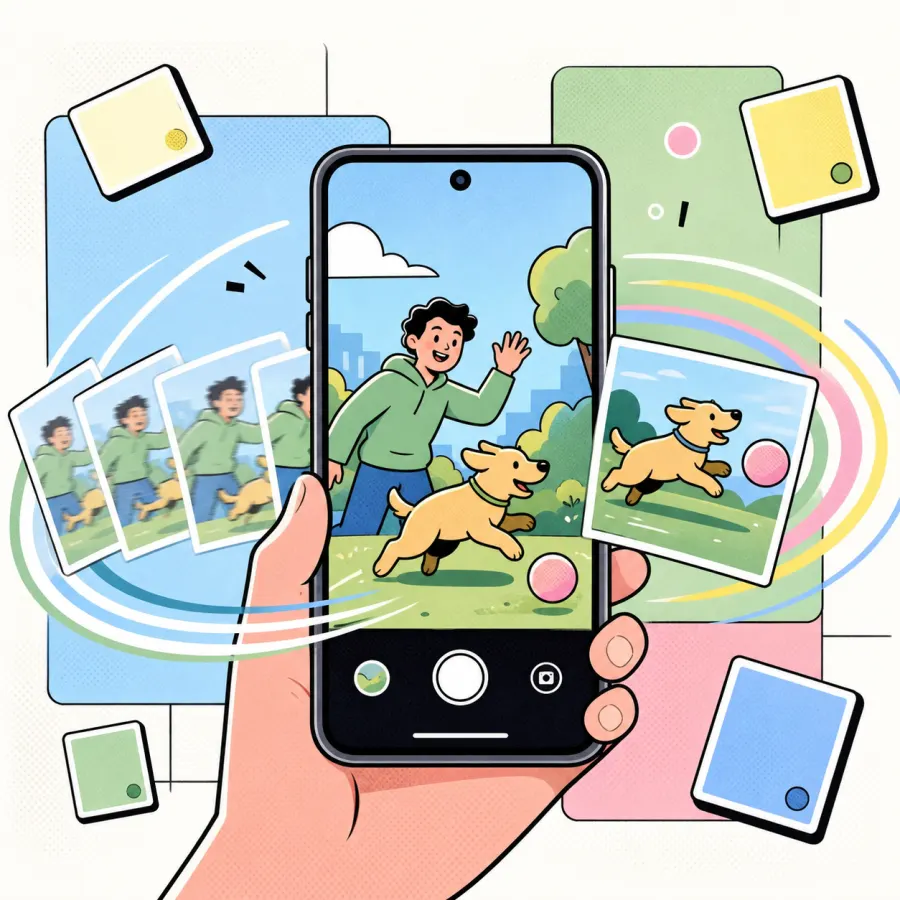
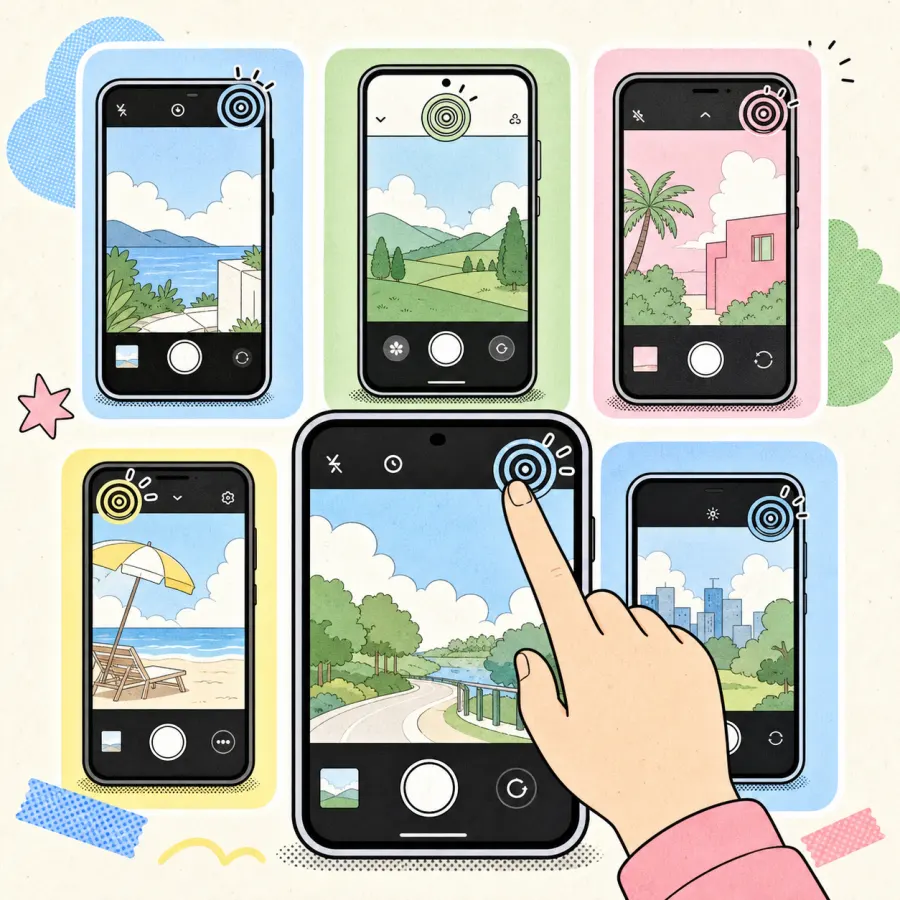
Yes — Android can take Live Photos. Samsung calls it Motion Photo, Xiaomi, Oppo, Realme and Vivo call it Live Photo, and stock Android / Pixel calls it Top Shot / Motion. Look for a small concentric-circles icon at the top of your camera. If it isn’t there, your camera app doesn’t support it — a free motion-photo camera app adds it to any phone.
Turn on Live Photos by phone brand
Samsung (Galaxy / One UI)
Motion Photo- Open the Samsung Camera app.
- Tap the Motion Photo icon at the top — a small circle/aperture icon next to the flash and timer.
- When it is highlighted, every shot saves about 1.5 seconds of movement.
- Open the photo in Gallery and press and hold to play the motion.
Galaxy phones store these as Motion Photos (a JPEG with an embedded MP4), which is Google’s standard — not Apple’s Live Photo container.
Xiaomi / Redmi / POCO (HyperOS · MIUI)
Live Photo- Open the Camera app and switch to Photo mode.
- Tap the Live Photo icon at the top (concentric-circles icon).
- Take your shot — the camera records a short clip around the frame.
- In Gallery, long-press the photo to watch it move.
Xiaomi labels the feature “Live Photo”, but the saved file is still a Google-style Motion Photo, not an iPhone .HEIC Live Photo.
Oppo · Realme · Vivo (ColorOS / OriginOS)
Live Photo- Open the stock Camera app in Photo mode.
- Tap the Live Photo toggle at the top of the viewfinder.
- Capture as normal; motion is recorded automatically.
- Long-press the result in the gallery to replay it.
On some budget models the toggle is missing entirely — if you don’t see it, your camera app does not support motion capture.
Pixel · Motorola · Stock Android (Google Camera)
Top Shot / Motion- Open Google Camera.
- Tap the Motion icon (a small ring) at the top and choose “Motion on” (or “Auto”).
- Take the photo — Google captures frames before and after the shutter.
- Open it in Google Photos and tap the Motion badge to play it.
Google Camera calls this “Top Shot / Motion”. Many Motorola and entry-level stock-Android phones ship without it.
Infinix · Tecno · other budget phones
Often unsupported- Check the top of your camera viewfinder for any “Live”, “Motion” or concentric-circles icon.
- If there is no such toggle, the built-in camera cannot record motion photos.
- Use a dedicated motion-photo camera app instead (see below).
Many XOS / HiOS devices have no native motion-photo mode at all — an app is the only reliable option.
No Motion Photo toggle? Use a camera app
If your phone has no built-in motion mode — or you want to share your Live Photos with iPhone users — LivePhoto Camera fills the gap on any Android device.
- Shoot on any phone. Captures frames before and after the shutter, even on phones with no native motion mode.
- Apple-compatible export. Saves real Live Photos that stay moving when AirDropped or set as an iPhone wallpaper.
- One-tap convert. Export your motion photos as MP4, GIF or live wallpaper for sharing anywhere.
- Edit without flattening. Add filters, retro date stamps and text while keeping the motion intact.
Chasing a vintage look too? See our pick of the best film camera apps for Android.
Get it onGoogle Play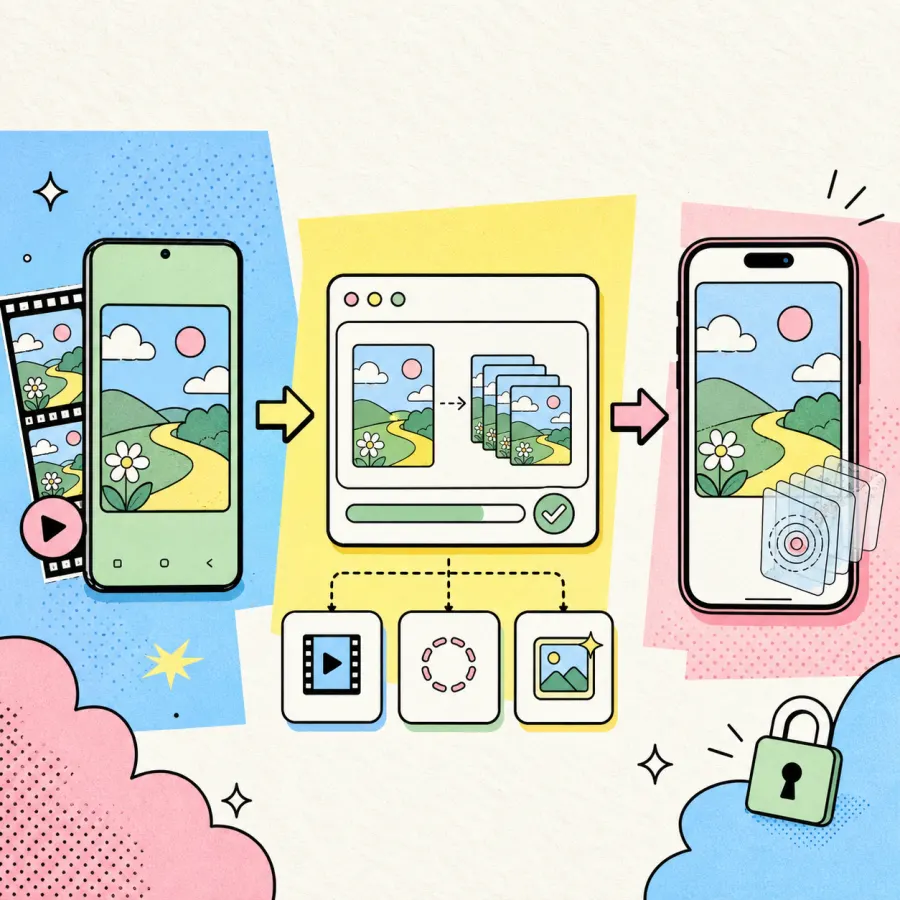
Already have the photo? Convert it online
Want to keep things in the browser? These free tools turn your existing clips and photos into Live Photos — no upload, no watermark.
Frequently asked questions
Can all Android phones take Live Photos?
No. Whether your phone can shoot a moving photo depends on its camera app, not Android itself. Samsung, Xiaomi, Oppo, Realme, Vivo and most Pixels include a Motion Photo / Live Photo toggle. Many Motorola, Infinix and Tecno phones do not. If your camera has no such toggle, install a motion-photo camera app like LivePhoto Camera.
What is the difference between an Android Motion Photo and an iPhone Live Photo?
They look the same but use different file formats. Android saves a Motion Photo — a JPEG with an MP4 embedded inside it. An iPhone Live Photo is a HEIC/JPEG paired with a separate .MOV. Because the containers differ, an Android Motion Photo will usually appear as a still image when sent to an iPhone unless it is converted first.
How do I send an Android Live Photo to an iPhone so it still moves?
Convert it to an Apple-compatible Live Photo first. LivePhoto Camera exports Apple-format Live Photos directly, or you can use our free in-browser converters such as Video → Live Photo. Sending the raw Android file over WhatsApp or Messages flattens it to a still.
Why does my Live Photo lose its motion when I share it?
Most messaging apps and social platforms strip the embedded video and keep only the still frame. To preserve motion, share the original file via Google Photos link, or export it as an MP4/GIF/Live Photo using a dedicated tool.
Is there a free Live Photo camera app for Android?
Yes. LivePhoto Camera is free to install and lets you shoot motion photos on any Android phone — even ones without a built-in toggle — then export them as Live Photos, videos, GIFs or live wallpapers.