How to Set a Live Photo Wallpaper on iOS 17 & 18
If you recently updated your iPhone to iOS 17 or iOS 18 and found that your Live Photo wallpaper suddenly stopped moving, you are not alone. Apple fundamentally changed the Lock Screen engine starting with iOS 16, which temporarily broke Live Wallpapers.
Fortunately, Apple brought them back in iOS 17, but the rules have changed. Here is exactly how to set up an animated Lock Screen and how to fix common errors.
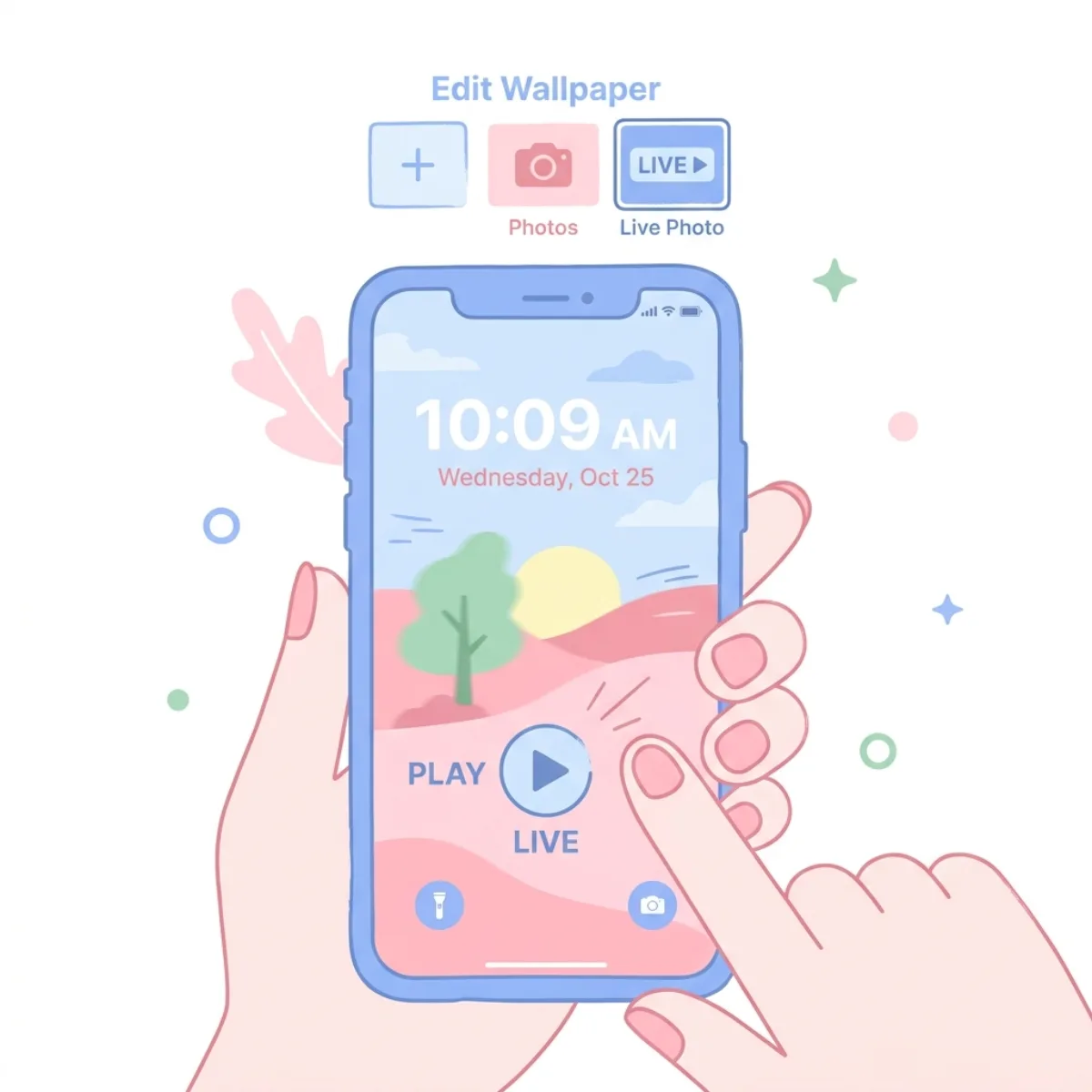
Why Did My Live Wallpaper Stop Working?
In older versions of iOS (iOS 15 and below), setting a Live Wallpaper meant you had to 3D Touch or long-press the screen to see it animate.
Starting in iOS 17, Live Wallpapers animate automatically when you wake the screen. However, because of this new "wake" animation, Apple became very strict about the types of Live Photos it accepts:
- The Live Photo must have enough motion.
- The subject in the photo must not be obscured by the new depth-effect clock.
- The Live Photo cannot be too zoomed in.
If your photo violates these rules, the motion icon will have a slash through it, and the wallpaper will remain static.
How to Set a Live Photo Wallpaper (The Right Way)
To ensure your Live Photo actually animates on the Lock Screen:
- Wake your iPhone and long-press on the current Lock Screen.
- Tap the blue (+) button in the bottom right corner to create a new wallpaper.
- Tap Photos at the top, then tap the Albums tab.
- Scroll down to Media Types and select Live Photos.
- Choose your Live Photo.
- Crucial Step: Look for the Live Photo icon (a circle made of dashed lines) in the bottom-left corner of the preview. Tap it so that the slash disappears.
- Tap Add in the top right corner.
How to Fix the "Motion Not Available" Slash
If you select a Live Photo and the motion icon has a slash that you cannot tap to remove, the image is incompatible with iOS 17's motion engine.
To bypass this, you need to turn the video portion of the Live Photo into a completely new, compliant Live Photo. You can easily fix this using our Video to Live Photo Converter or our Live Wallpaper Maker. By converting it back into a fresh Live Photo, you strip away the old metadata that causes iOS 17 to reject it.
Can I Use TikToks as Live Wallpapers?
Yes! If you have a video from TikTok or Instagram Reels that you want to set as your wallpaper, you must first convert that MP4 video file into a Live Photo.
Check out our dedicated TikTok to Live Photo Converter which instantly translates any downloaded short-form video into an iOS-ready Live Photo. No app download is required, and your files are processed directly in your browser.