How to Set a Video as Wallpaper on Android: Samsung and Other Phones
Android video wallpaper support depends on the phone maker, model, software version, and whether you are setting the home screen or lock screen. Start with a video saved locally on the phone, then follow the system path your device actually shows.
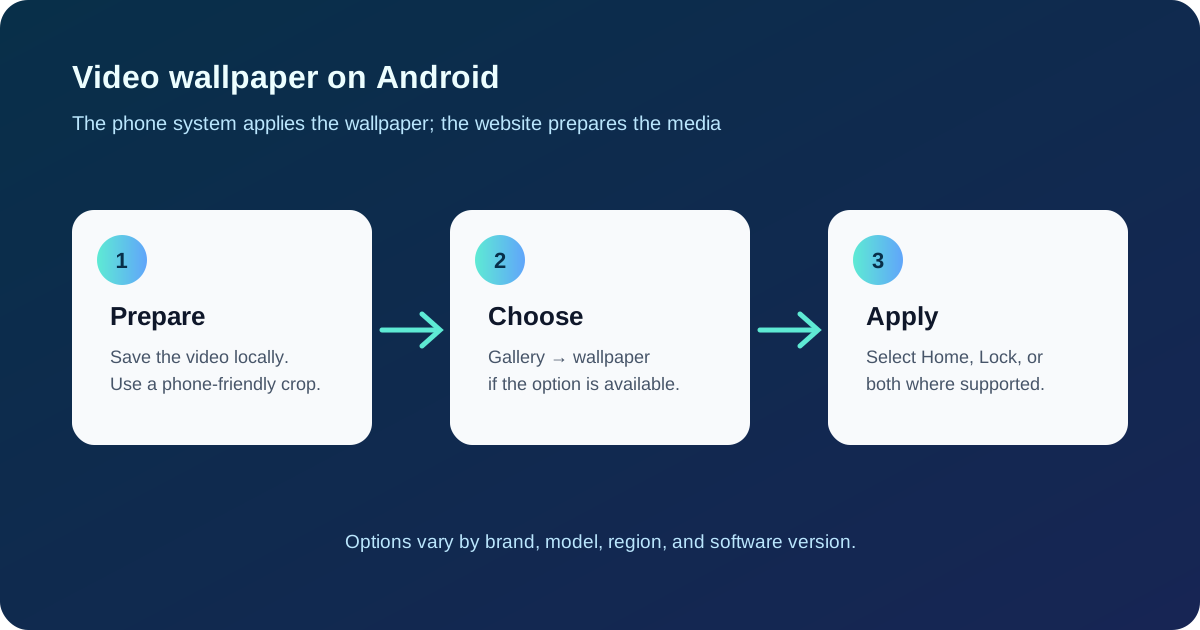
Our browser tools can help you inspect or prepare a moving file. The final Set as wallpaper action belongs to Android or a compatible wallpaper app, so a browser cannot confirm that every phone will offer the same destination.
Samsung Galaxy: check both screens
Samsung's current official support guide documents separate video workflows for the home screen and lock screen. The wording and menu positions can vary by model and software version.
Home screen video
- Touch and hold an empty area of the home screen.
- Tap Wallpaper and style, then Change wallpapers.
- Choose Gallery and select the local video.
- Tap Done, trim the clip if the editor offers that control, then apply it.
Lock screen video
- Touch and hold the lock screen and unlock when prompted.
- Open Wallpapers and choose Gallery.
- Select the local video, tap Done, and trim it if needed.
- Apply the result to the lock screen.
If your device does not show a video option in the relevant editor, do not use an old tutorial's menu as proof that the feature is available. Samsung's US support page also documents home and lock screen paths, but actual availability remains device-specific.
Pixel and other Android phones
Check for a built-in video option
Menu names differ by brand, but the search usually goes like this:
- Touch and hold an empty area of the home screen and open Wallpaper or Wallpaper & style.
- Look for a source such as Gallery, Photos, Videos, or Live wallpapers, and check whether it lets you pick a video.
- If it does not, open the video in your phone's Gallery app and look in the ⋮ or share menu for Set as wallpaper.
If none of these accepts a video, your phone has no built-in video wallpaper option. Use a live wallpaper app instead (next section).
Pixel also has a separate Cinematic wallpaper feature. Google's official Pixel instructions describe adding 3D motion to a still photo on Pixel 6 and later. That is not the same as importing an MP4 as a wallpaper, so a Pixel without a video option in its picker also needs the app route below.
No video option? Use a live wallpaper app
Android lets apps provide live wallpapers, so a phone without a built-in video option can still show a moving wallpaper. Our Android app, LivePhoto Camera, can set a Live Photo or a video as a live wallpaper:
- Install LivePhoto Camera from Google Play and open it.
- Choose the Live Photo or video you want to use.
- Tap Set as Wallpaper, then adjust the crop and scale in the preview.
- Confirm in the Android wallpaper screen that opens next. Choose Home screen, Lock screen, or both if your phone offers that choice.
Your phone must support Android live wallpapers. Some manufacturers allow a live wallpaper only on the home screen, while others also offer the lock screen, and the phone system controls that final choice. See the LivePhoto Camera help page for more detail.
Prepare the video before you move it to the phone
Use a file that is already saved locally and preview it in the phone's Gallery. For a portrait lock screen, a vertical crop normally avoids aggressive trimming. Keep the important subject away from the top and bottom system areas, because clocks, icons, and gesture controls can cover the image.
These free browser tools can help you prepare the source file:
- Motion Photo Viewer checks and previews an original Samsung or Pixel Motion Photo JPG.
- Motion Photo to Video extracts a playable MP4 from a compatible original Motion Photo JPG.
- TikTok Android Live Photo troubleshooting explains why a TikTok native photo and a video wallpaper are separate workflows.
An extracted MP4 is a normal video asset. It does not automatically become a native Live Photo or install itself as wallpaper.
Common problems
| What you see | What to check |
|---|---|
| Gallery shows the video but wallpaper editor does not | Confirm that you opened the correct Home or Lock screen editor and that the file is stored locally |
| Only one screen can use the video | This is a system limitation of that model; apply the option it offers |
| The subject is cropped | Re-edit the source to a portrait ratio or use the phone's crop preview before applying |
| The video is too long or rejected | Trim it in the system editor; do not assume another phone's duration limit applies |
| Wallpaper looks static | Check whether the system pauses motion, the file has a playable video track, or battery settings suppress animation |
| A downloaded file cannot be selected | Re-save it to Gallery or the device's local media folder, then reopen the wallpaper picker |
Samsung's Galaxy S23 dynamic lock screen guide lists a 15-second, 100 MB limit, but that applies to the devices in that guide, not to every Android phone. Follow the limit your own phone shows when you pick the video.
The reliable hand-off
Prepare and download the video, save it to the phone, confirm that it plays in Gallery, and then use the system wallpaper editor. If the editor has no video option, set it through a live wallpaper app such as LivePhoto Camera instead. If you contact your phone maker's support, include the phone model, Android/One UI version, target screen, file format, file size, and the exact menu where the option is missing.