Samsung Depth Effect Wallpaper: One UI 8.5, Stretch Clock and 3D Options
“Depth effect wallpaper” is used to describe several different visual results. On a Samsung Galaxy, the setting you find may be Stretch Font or Stretch Clock: the clock adjusts around a recognized subject in the photo. That is different from an iPhone-style subject layer in front of the clock, and different again from a photo that shifts in 3D when you tilt the phone.
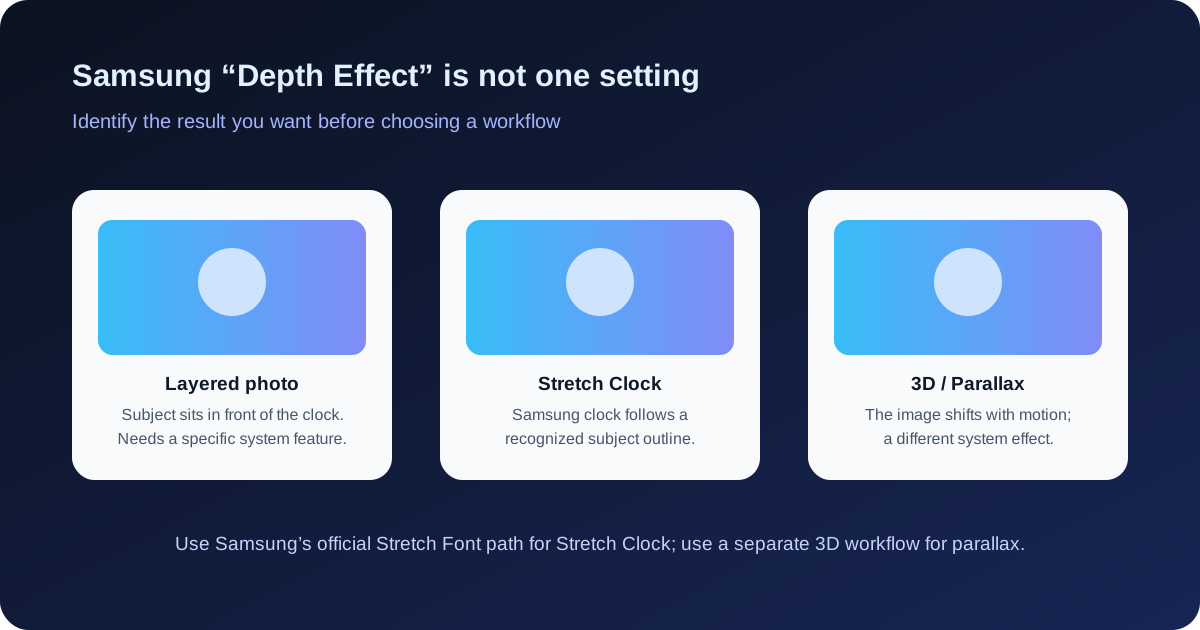
Start by identifying the effect you actually want. The right setting depends on your Galaxy model, One UI version, region, and the structure of the photo.
What Samsung officially calls Stretch Font
Samsung's official Stretch Font guide describes a lock-screen clock that adapts to a recognized subject. The documented path is:
- Open Settings.
- Tap Wallpaper and style.
- Open the Lock screen editor and tap the clock.
- Choose Font and color.
- Look for the second font or Stretch Font option shown on your device.
There is no single “Depth Effect” switch that works the same way on every Galaxy phone. What the clock can recognize depends on your One UI version, and only some clock styles support it. If the option is absent, check your software version and the clock styles your editor offers before installing another app.
One UI 8.0 vs One UI 8.5
Samsung's Stretch Font guide describes a change in what the lock screen can recognize between the two versions:
| One UI version | What the clock can adapt to |
|---|---|
| One UI 8.0 | People or animals in the photo |
| One UI 8.5 | Any image in which the system can recognize a subject outline |
In both versions the effect works only with the clock styles that support it.
In practice, a photo of a building, a car, or a plate of food will usually leave the clock in its normal position on One UI 8.0. The same photo may work after the phone updates to One UI 8.5, as long as the subject has a clear outline. To see which version you have, open Settings → About phone → Software information and check One UI version.
Choose a photo that gives the system something to recognize
Use a high-resolution photo with one clear person, pet, or object separated from the background. Keep the subject away from the extreme edges and avoid a busy background crossing the outline. These are practical selection tips; Samsung's actual recognition result still depends on the device and software.
If the clock does not adapt, try another photo and another supported clock style. A photo that works in a third-party editor does not prove that Samsung's lock-screen editor will recognize the same subject.
Three effects that are easy to confuse
| Desired result | What it is | Where to look |
|---|---|---|
| Clock moves around a recognized subject | Samsung Stretch Font / Stretch Clock | Galaxy lock-screen editor |
| Subject appears in front of the clock | A specific system layer effect, if your device exposes one | Check the actual lock-screen options; do not assume Stretch Font provides it |
| Photo shifts as you tilt the phone | 3D motion or parallax | Pixel Cinematic, a compatible app, or a prepared motion asset |
Google's Pixel wallpaper documentation describes Cinematic wallpaper for Pixel 6 and later. It adds 3D motion to a still photo, but it is a Pixel-only feature and works differently from Samsung's Stretch Clock.
Preview a 3D parallax look in your browser
Our free 3D Photo Maker shows an interactive parallax preview in the browser, so you can see how a photo looks with depth motion before you commit to it. It does not change Samsung's system clock layer or install a lock-screen effect by itself.
If you want to prepare a moving asset for an Android wallpaper workflow, see the Android video wallpaper guide. The phone system or a compatible Android app performs the final wallpaper action.
If the effect is missing
Check the following in order:
- the exact Galaxy model and One UI version;
- whether the photo is stored locally in Gallery;
- whether the subject has a clear outline;
- whether you are editing the lock screen rather than the home screen;
- whether the clock style you selected supports the effect;
- whether the feature is available in your region or software build.
Do not treat a video thumbnail or a browser parallax demo as proof that Samsung will expose the same effect on the lock screen. They demonstrate different layers of the experience.
Which option to use
Use Samsung's own Stretch Clock setting when your Galaxy offers it, and use a separate 3D or parallax workflow when you want the photo itself to move. Don't expect one switch that recreates the iPhone-style depth layer on every Galaxy phone. The result depends on your model, One UI version, and the photo you choose.