How to Turn a GIF into a Live Photo Without Installing an App
GIFs are perfect little loops, but they do not behave like Live Photos on an iPhone lock screen. A GIF is a silent animated image. A Live Photo is a short video-style motion clip paired with a still frame. To use a GIF as a Live Photo wallpaper, you need to turn that loop into a short Live Photo-compatible clip.
You do not always need to install an app for that. If you already have the GIF file, you can convert it in the browser and keep the workflow simple.
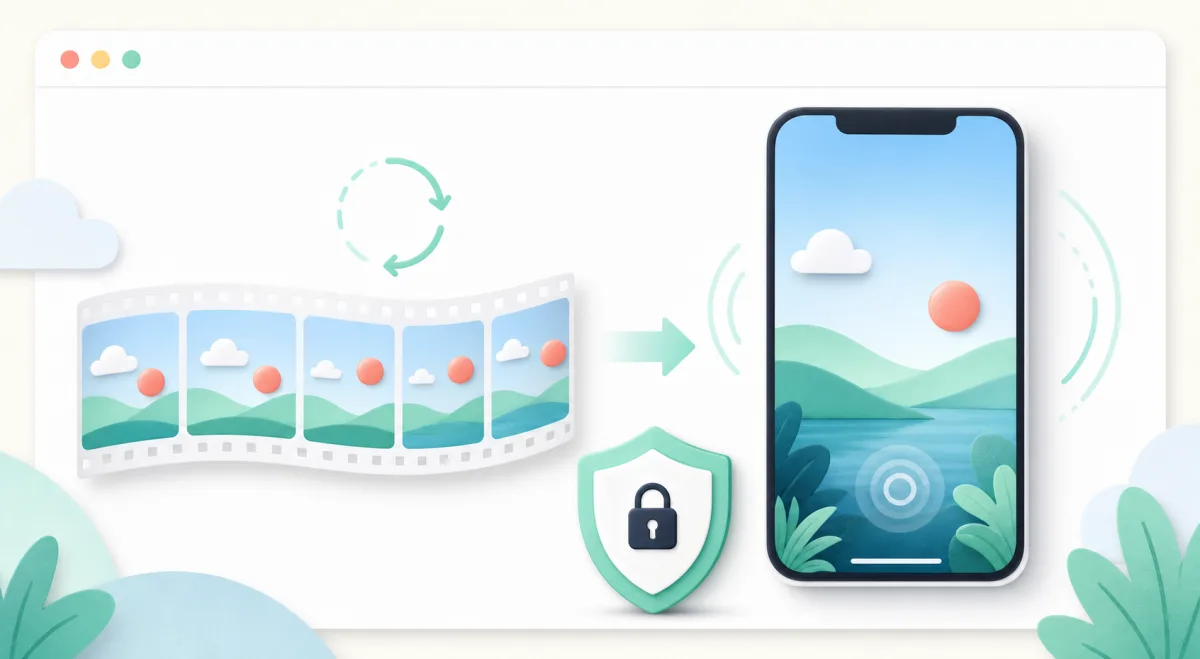
Quick answer
Open the GIF to Live Photo converter, upload your GIF, choose a short duration, and export the Live Photo-style motion file. For iPhone wallpapers, a 3 to 5 second loop usually feels better than a long animation.
If your starting file is actually an MP4, use Video to Live Photo or MP4 to Live Photo instead. You will usually get better quality than starting from a GIF.
Why GIF quality can look rough
GIF is old. Useful, charming, everywhere - but old. It has a few limits that matter when you turn it into a lock-screen animation:
- GIFs have no audio.
- Many GIFs are low resolution.
- GIFs often use a small color palette, so gradients and skin tones can look crunchy.
- Some GIFs are tiny on purpose because they were made for chat, not wallpapers.
The converter can package the motion into a Live Photo-style output, but it cannot invent detail that was never in the GIF. If you have the same animation as an MP4, start with the MP4.
How to convert a GIF to a Live Photo
- Download or save the GIF you want to use.
- Open GIF to Live Photo.
- Upload the GIF.
- Pick a short duration. Around 3 seconds is a good starting point.
- Choose a phone-friendly crop if you are making a lock-screen wallpaper.
- Convert and download the result.
After that, move the file to your iPhone if you converted it on desktop, then save it to Photos and try it on the lock screen.
Best settings for a lock-screen GIF
Use these as a starting point:
| Setting | Good default | Why |
|---|---|---|
| Duration | 3 seconds | Feels like a Live Photo instead of a long clip |
| Aspect ratio | 9:16 | Fits most phone lock screens |
| Crop | Center subject | Keeps faces and main action away from the clock |
| Source quality | Highest available | GIF compression gets obvious fast |
If the result looks soft, the problem is usually the original GIF. Try finding a larger source or a video version of the same animation.
When a browser tool is better than an app
An app is convenient if you make wallpapers every day. A browser tool is nicer when you just need to convert one file, do not want another app on your phone, or are working from a desktop folder.
The privacy angle matters too. LivePhotoTools runs conversion locally in your browser, so the GIF or video does not need to be uploaded to a remote conversion server. For memes that may not matter. For personal clips, it does.
Common mistakes
The first mistake is using a GIF that is too small. If the file is 320 pixels wide, it will not magically become sharp on a modern phone screen.
The second mistake is making the loop too long. Lock-screen animations work best when they feel like a short moment, not a full video.
The third mistake is choosing the wrong source format. If your animation came from TikTok, Instagram, or your camera roll, it probably started as a video. Use MP4 to Live Photo instead of forcing it through GIF first.
A simple rule
Use GIF to Live Photo when the GIF is the only file you have. Use Video to Live Photo when you have a video source. The video path usually gives you better color, smoother motion, and more control.
Want to go the other way? Converting a Live Photo to a GIF takes a minute, and Live Photo vs GIF explains which format to keep for what. Once your Live Photo is on the phone, set it as your iPhone wallpaper.