How to Make a Live Photo (From a Photo or a Video)
A Live Photo is the short burst of motion and sound an iPhone captures around the moment you press the shutter (new to the format? start with what an iPhone Live Photo is). But you don't need to have taken one on an iPhone to make a Live Photo today - you can create one from a picture you already have, or from a short video clip, entirely in your browser.
This guide covers both routes, when to use each, and the one step that still has to happen on the phone itself.
Quick answer
To make a Live Photo from a video, open Video to Live Photo, trim the clip to 1.5-6 seconds, and download the Live Photo file. To make one from a still picture, use Photo to Live Photo, which adds a slow zoom or pan. Then save the file to your iPhone's Photos app. Both tools are free and run in your browser, so you don't need an app. If you're not sure which tool fits your file, the Live Photo Maker page points you to the right one.
Two Ways to Make a Live Photo
| Starting point | Best when | Tool to use |
|---|---|---|
| A still photo (JPG/PNG/WebP) | You only have one flat image and want to add gentle motion | Photo to Live Photo |
| A video clip (MP4/MOV) | You have footage and want to pick the best 1-3 seconds | Video to Live Photo |
Both run 100% in your browser. Your files are never uploaded, there's no account, and there's no watermark on the result.
Method 1: Make a Live Photo From a Photo
If you only have a static image, the trick is to add believable camera motion - the same slow pan and zoom (the "Ken Burns" effect) that documentaries use to make a single photo feel alive.
- Open the Photo to Live Photo tool and drop in a JPG, PNG, or WebP.
- Choose a motion effect: Ken Burns (slow zoom) works beautifully for portraits and landscapes, while Pan glides the frame left to right.
- Set the duration (1.5, 3, or 5 seconds), pick zoom in or out, and choose an aspect ratio - 9:16 for a phone wallpaper, 1:1 for a square post, or Original.
- Click Convert and download your motion clip.
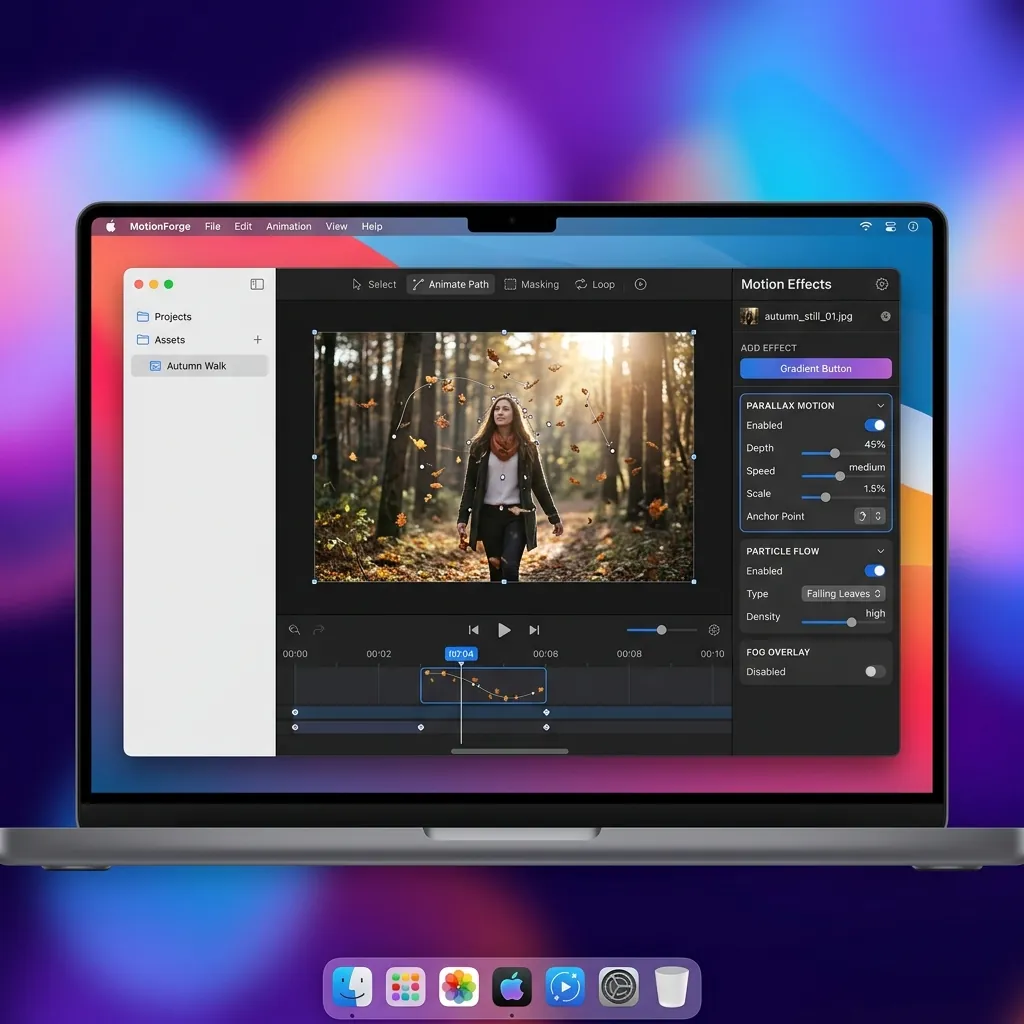
Is this AI? No. It does not invent new frames or move faces - it applies a real camera move to your actual photo, so the result stays true to the image and renders in seconds without sending anything to a cloud model.
Method 2: Make a Live Photo From a Video
If you already have footage, you don't start from a still - you choose the moment. This is the closest thing to how an iPhone captures a Live Photo, because the motion is real.
- Open the Video to Live Photo tool and upload an MP4 or MOV.
- Use the preview to trim down to the best one to three seconds - Live Photos are short by design.
- Crop to your target shape (9:16 looks best on a Lock Screen) and pick a cover frame.
- Click Convert and download the Live Photo file.
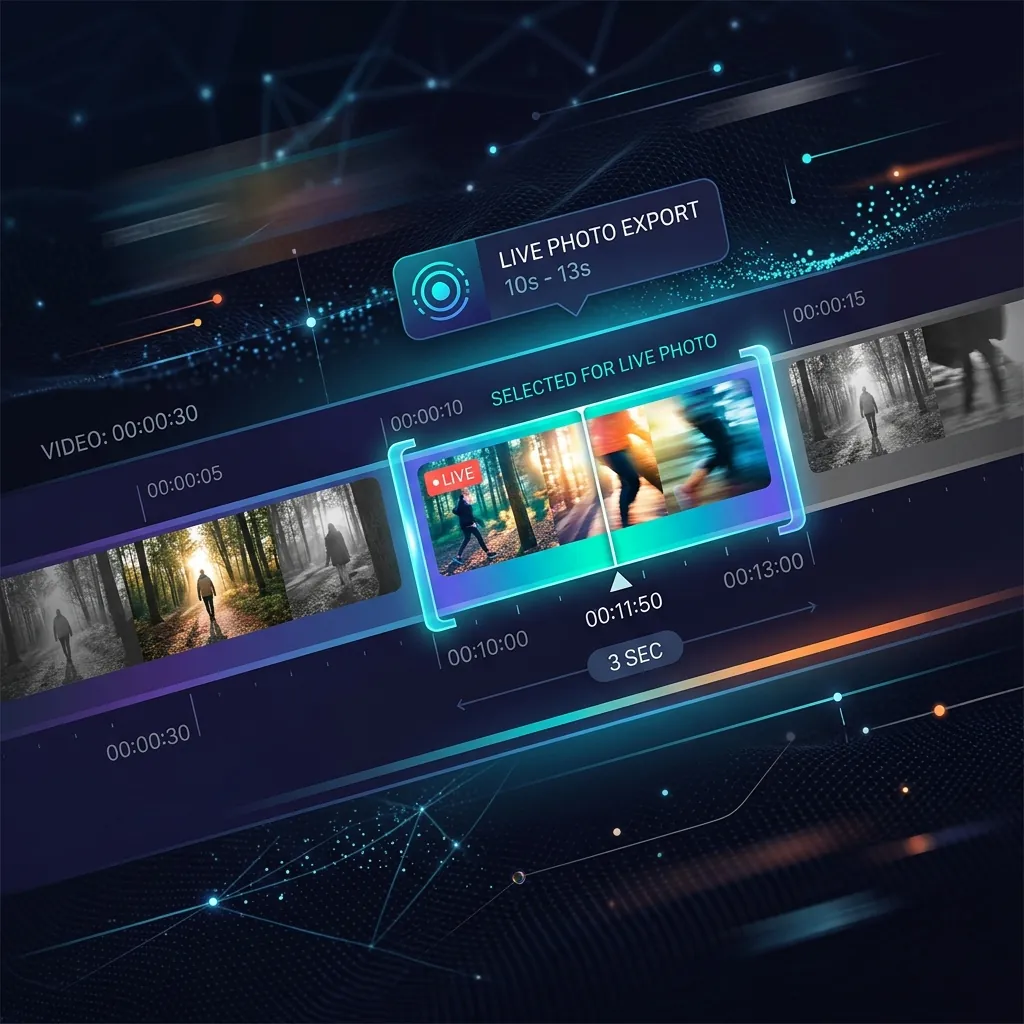
A short, well-trimmed clip almost always looks better than a long one, so resist the urge to keep the whole video.
What You Can Do With Your New Live Photo
Once you've made it, the motion file is yours to reuse:
- Share it as a video on Instagram, TikTok, or WhatsApp - the clip plays on any device, Apple or Android.
- Turn it into a looping GIF with the Live Photo to GIF converter.
- Build a phone wallpaper with the Live Wallpaper Maker.
- Need it back as a flat clip? Use Live Photo to Video any time.
The One Step That Happens on Your Phone
Here's the honest part most pages skip: a website can create the moving file, but it cannot install it as a true iPhone Lock Screen Live Photo. Setting a Live Photo as a Lock Screen wallpaper is a system-level action, and iOS does not expose it to Safari. So the workflow is:
- In your browser: make and download the Live Photo (the steps above).
- On your iPhone: save it into Photos and set the wallpaper there, or use a dedicated app for the final hand-off.
The web does the heavy lifting - the conversion, trimming, and motion - and the phone does the last tap. If you want more about how iPhone Live Photos work under the hood, see Live Photo vs GIF.
Frequently Asked Questions
Can you turn a regular photo into a Live Photo? Yes. A still image has no motion of its own, so the Photo to Live Photo tool adds a subtle pan or zoom to simulate the movement a real Live Photo captures.
How do I make a Live Photo without an iPhone? Use either tool above from any device - Windows, Mac, or Android. You don't need an iPhone camera to create the file; you only need an iPhone (or app) for the final "set as wallpaper" step.
How long should a Live Photo be? A Live Photo taken on an iPhone is about 3 seconds long: roughly 1.5 seconds before you press the shutter and 1.5 seconds after. When you make one yourself, 1.5 to 3 seconds looks the most natural. The video tool lets you go up to 6 seconds if you need a little more motion.
Can I make a Live Photo on Android? Android phones save the same kind of moving picture as a Motion Photo. See how to take Live Photos on Android, or use Motion Photo to Video to share one with iPhone users.
Is my photo or video private? Yes. Both tools convert entirely in your browser. Nothing is uploaded, stored, or watermarked.