How to View and Convert Live Photos on Android
Apple's Live Photo feature is fantastic—if you're inside the Apple ecosystem. But if an iPhone user sends a Live Photo to an Android user, things often go wrong. Depending on how it's sent, the Android user might receive a static, low-quality JPEG, or a strange file they can't open at all.
If you are an Android user trying to figure out how to view a Live Photo, or an iPhone user trying to figure out how to send one without breaking it, this guide is for you.
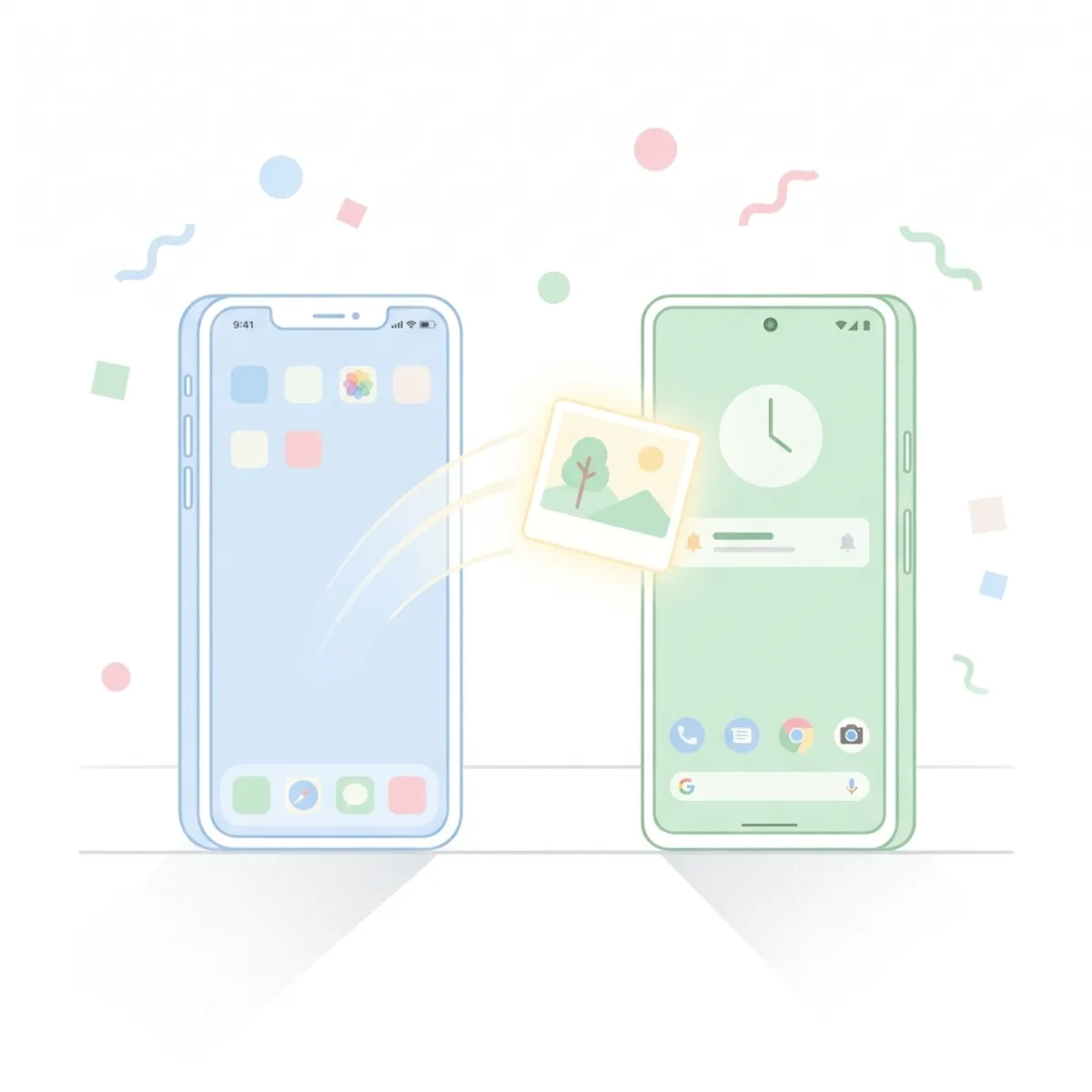
Why Android Can't Natively Play Live Photos
A Live Photo is not a single file format like an MP4 or a JPEG. Instead, Apple packages a high-resolution still image (usually in HEIC format) and a 3-second video clip (.MOV) together. Apple's iOS Photos app reads both files simultaneously and presents them as an interactive image.
Because Android’s gallery apps don't share this exact dual-file architecture, they don't know how to "play" the image when you press and hold it.
Method 1: Ask the Sender to Convert it to a Video
If your friend hasn't sent the photo yet, the easiest solution is for the iPhone user to convert it before sending.
For the iPhone user:
- Open the Live Photo in the Photos app.
- Tap the Share icon.
- Scroll down and tap Save as Video.
- The iPhone will generate a standard MP4 video file in the camera roll. Send that file to the Android user via text, WhatsApp, or Messenger.
Method 2: Convert it Online on your Android Phone
If you already received the files (perhaps via Google Drive or email) but they won't animate, you can convert them yourself using your Android browser.
If you received a .livp file, a .zip file, or both the .heic and .mov files:
- Open your Android web browser (Chrome, Samsung Internet, etc.) and go to our Live Photo to Video Converter or Live Photo to GIF Converter.
- Upload the file(s) you received.
- The tool will merge the data and output a standard MP4 video or an animated GIF.
- Download the new file to your Android gallery. It will play perfectly on any device.
Method 3: Use Google Photos
If both users use Google Photos, sharing becomes much easier. The Google Photos app on iOS can back up Live Photos intact, and the Google Photos app on Android knows exactly how to read them.
- The iPhone user uploads the Live Photo to Google Photos.
- The iPhone user shares the photo link or adds it to a shared album.
- The Android user opens the photo in their Google Photos app.
- The Android user will see a small "Play" button at the top of the image to view the motion and hear the audio.
Summary
While Apple and Android ecosystems don't play nicely natively, you are never locked out of your memories. By converting the Live Photo to a universally accepted format like MP4 or GIF, you can ensure that your photos look great and animate perfectly on any smartphone in the world.