TikTok Live Photo Not Moving on Android? Check the Original First
You captured a moving photo on Android, but TikTok shows only a still image—or the Live Photo option is missing altogether. The fastest way to find the cause is to test the same original file at three points: in the app that created it, in TikTok's photo flow, and in the published post.
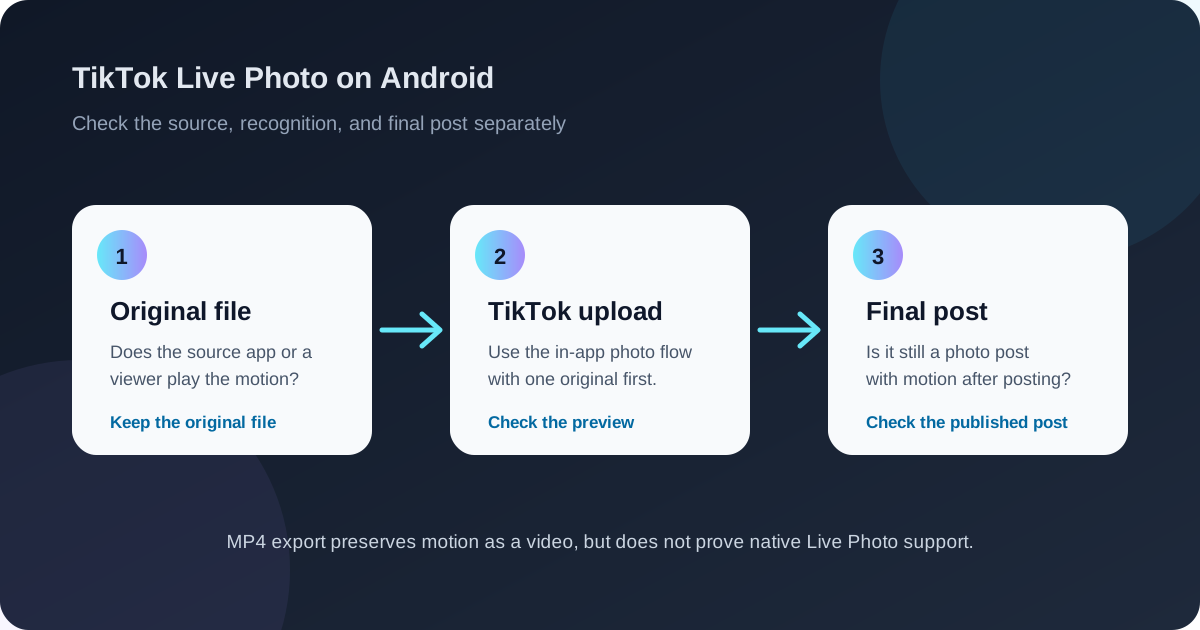
This guide is for people who want to keep the native Live Photo or motion-photo behavior. Exporting an MP4 is included at the end as a separate way to publish a normal video. An MP4 that plays successfully does not prove that TikTok will treat the source as a native Live Photo.
First, identify which TikTok feature you are using
TikTok has several places where a photo can appear, and they do not imply the same file support:
- A photo post starts from the Add post button and the Photo upload flow.
- A Live Photo comment is a photo reply under another post. TikTok announced this feature globally in September 2026, but did not publish a device-by-device compatibility list for Samsung Motion Photos, Google Motion Photos, Kapi files, or other Android containers. See TikTok's official announcement.
- A video post is an MP4 or another video upload. It can preserve movement while becoming a normal video post.
If your goal is a native moving photo, start with the first or second path and keep the original file. Do not start by converting it to MP4.
Step 1: Prove that the original still contains motion
Take one new test photo with obvious movement—a hand wave or a moving object—and save it with your camera app's Live Photo, Motion Photo, or Livephoto mode enabled. Keep this untouched original separate from edited and shared copies.
Then check it in the app that created it. If that app has a motion preview, use it. If you use Samsung or Pixel Motion Photos, open the original in a viewer that supports that format. A thumbnail that looks still is normal; a thumbnail does not prove that the video part is missing.
For an original Samsung or Pixel JPG, you can use the Motion Photo Viewer to check whether a playable motion clip can be read in the browser. The viewer is a file check, not a TikTok compatibility check. It currently targets original JPG/JPEG Motion Photos, so a failed check for another format means “this checker could not read it,” not “your file definitely has no motion.”
Android's Motion Photo format specification describes a still image with a secondary video and metadata that tells a reader how to locate it. Other apps can ignore that metadata or re-save only the still image. That is why the original file matters.
What the first check tells you
The source app plays the motion. Continue with the same original file. Do not export, screenshot, or send it through a messenger before testing TikTok.
The source app plays it, but one gallery does not. This may be a viewer limitation. Try the original app or another compatible viewer before concluding that the file is broken.
The original does not play anywhere. Check that motion capture was enabled before the shot, that the file was not edited or compressed, and that the camera actually saved a motion clip. If you only have a flat JPG, no converter can recreate the original captured moment.
Step 2: Test TikTok's in-app Photo flow
Use the current TikTok app and begin inside TikTok rather than relying on a system share shortcut. TikTok's Help Center documents separate video, photo, and text post flows in its Making a post guidance. The labels and rollout can vary by account, region, and app version.
For a clean test:
- Tap Add post and choose the Photo upload flow if it is shown.
- Select one untouched original motion photo.
- Wait for the preview to finish loading. Do not add a template, filter, text, or a second image yet.
- Record what TikTok shows: a motion indicator, a preview that moves, a normal still-photo preview, or an error.
- If the file does not appear, check TikTok's selected-photo permission and confirm that the file is stored locally rather than only in a cloud gallery.
If you are replying to a comment, repeat the test in the comment's photo-upload control. A photo post and a Live Photo comment are different tests. One can work while the other does not.
Do not assume that a missing Live Photo control is a file failure
TikTok's official Android help pages do not provide a complete list of compatible camera apps or Motion Photo containers. A missing control can reflect the current account, region, app version, or posting surface. Update TikTok and your phone, restart the app, and test a fresh original file. If the same account cannot recognize any original motion photo, report the problem from Profile → Menu → Settings and privacy → Report a problem and include your phone model, Android version, TikTok version, and the exact posting surface.
There are device-specific exceptions. OPPO's Reno13 product page says the phone supports posting in Livephoto format on TikTok, while its footnote also says the feature depends on a TikTok software update. That is evidence that native Android support exists for at least a defined device path—not a guarantee for every Android phone. See the OPPO Reno13 specification note.
Step 3: Check the published post, not just the preview
A moving preview is useful, but it is not the final test. After posting, open the complete post and check whether it remains a photo post and whether its motion can be played using the interaction TikTok provides. A video timeline means TikTok accepted a video, not a native Live Photo.
If you are comfortable doing so, use a private or limited-visibility test post. Do not publish a personal test publicly just to diagnose a file. For a multi-photo post, verify the individual photo that contains motion; one successful image does not prove every image in the set was retained.
Use this result table:
| What happened | What it means | Next move |
|---|---|---|
| The source app moves, TikTok cannot find the file | Permission, local-storage, or picker issue is more likely than a lost clip | Recheck selected-photo access and the local original |
| The source app moves, TikTok shows a still preview | TikTok did not recognize this source as a native moving photo in that flow | Try one fresh original; compare photo post vs comment; keep the file unchanged |
| TikTok preview moves, published post is still | The upload or post processing did not preserve the behavior | Compare a one-photo post with no edits and report the exact version/surface |
| One source works and another does not | Source format or app output may differ | Save both originals and record their format and capture app |
| The original is flat everywhere | The motion data is absent, stripped, or unsupported by the viewer | Find the untouched backup or capture a new motion photo |
| You accept a normal video post | Movement can still be shared, but the native photo interaction is gone | Export the motion clip as MP4 and upload it as video |
Why “it moves in my gallery” is not enough
Android Motion Photos are containers, not ordinary JPGs. A camera can save a still image and a short video together; a gallery written for that camera can play both. Another app may choose only the still image. Some third-party apps also re-save the image and remove the appended video or the metadata that locates it.
This explains two reports that seem contradictory: some Samsung users report that TikTok offers no Live Photo upload, while other Android users report success with a particular camera app or device. These reports do not establish a universal Android rule. They tell you to test the exact source file, phone, TikTok version, and posting surface.
When to use the MP4 fallback
Use the fallback only when you are willing to publish a normal video. On Samsung or Pixel, start with the untouched original and use the phone's own Save as video or Export video action when available. Samsung's Motion Photo guide documents sharing a Motion Photo as a video and lists common reasons the motion control may be unavailable, including high-resolution modes, conflicting camera modes, and low storage.
If you need browser-based extraction from an original Samsung or Pixel JPG, use Motion Photo to Video. The tool extracts a playable MP4 locally; it does not rewrite the JPG into a TikTok-approved native Live Photo. Upload the resulting MP4 through TikTok's video flow.
A useful support report
If a fresh original still fails, send TikTok a compact report instead of repeatedly converting the file:
- phone model and Android version;
- TikTok version and whether you used the full app or Lite;
- country or region, if the feature appears different;
- camera or app that created the file and its version;
- whether the source app and another viewer play the motion;
- Photo post or Live Photo comment;
- in-app preview result and published-post result;
- whether the file was edited, backed up, messaged, or downloaded before upload.
Keep the original sample. A screenshot or an exported still cannot help support diagnose a missing motion track.
The reliable decision
If you need native Live Photo behavior, preserve the original and test it in the exact TikTok surface where you want to use it. If TikTok accepts it as a normal still, there is no confirmed web conversion that can guarantee native recognition for every Android source. If you only need the movement to play in the feed, export the motion clip as MP4 and publish it as a video—that solves a different problem.
For the separate iPhone Live Photo comment workflow, see TikTok Live Photo Comments: How to Post Moving Photos. It covers the announcement and the limits that are still unconfirmed for Android files.