What Is an iPhone Live Photo? The Complete Guide
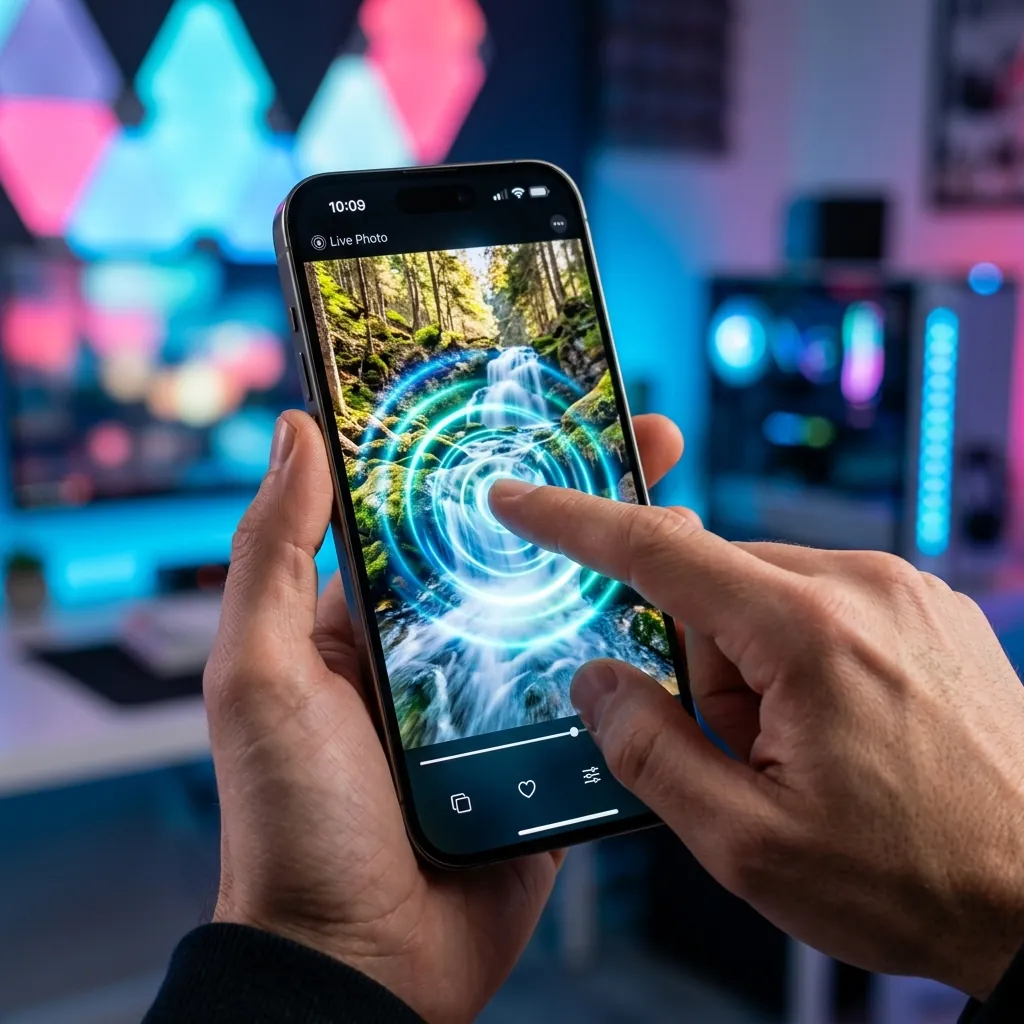
An iPhone Live Photo is a photo that moves. Instead of freezing a single instant, it captures about 1.5 seconds of motion and sound before and after you press the shutter, so a still image comes to life when you press and hold it. Apple introduced the feature with the iPhone 6s in 2015, and it has been on by default in the Camera app ever since.
This guide explains what a Live Photo really is under the hood, how to take, view, edit, and convert one, and how to make your own - whether you have an iPhone or not.
How a Live Photo Actually Works
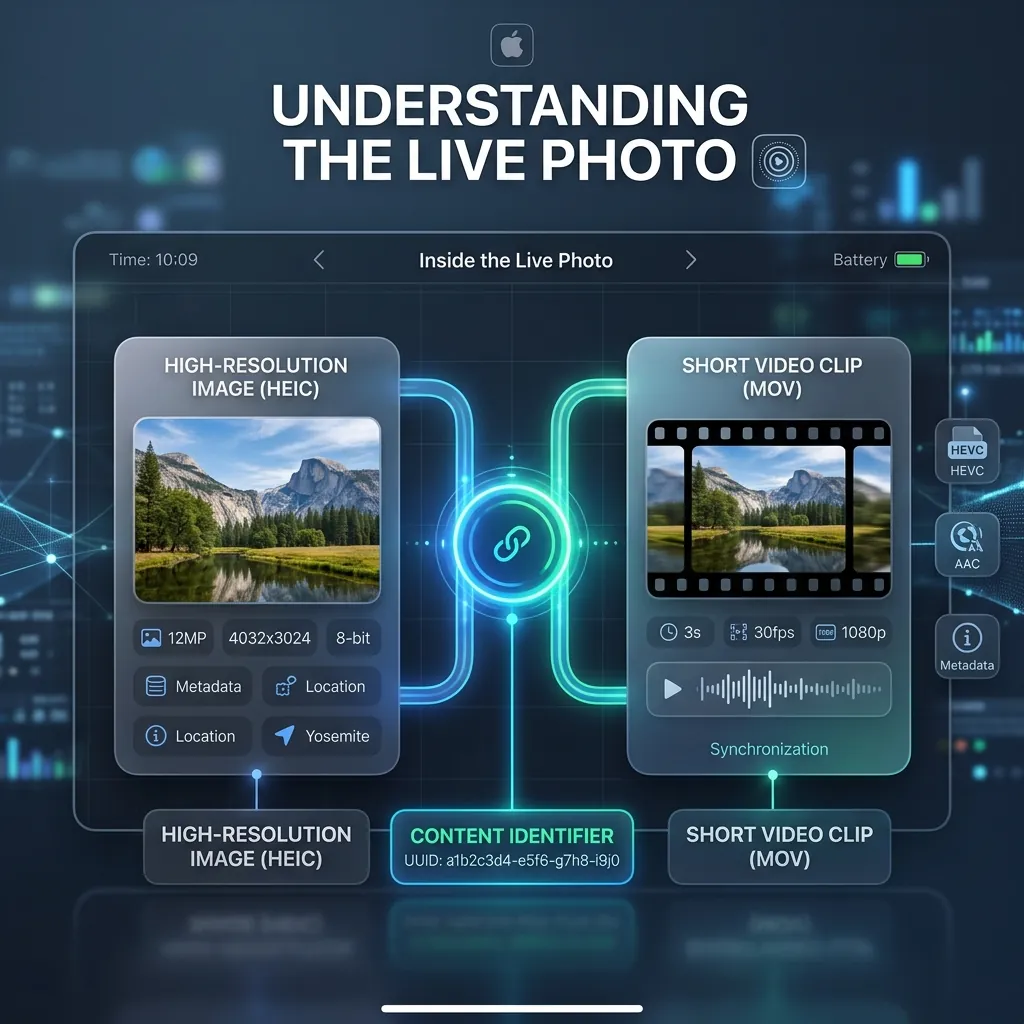
A Live Photo is not a video, and it's not a GIF. It is a pair of files that the system keeps linked together:
- A full-resolution still image (a HEIC or JPEG) - this is the "key photo" you see in your library.
- A short MOV video (roughly three seconds, with audio) that holds the motion.
The two halves are tied together by a shared content identifier written into each file's metadata. That identifier is what tells iOS "these belong together, treat them as one Live Photo." If the link or the metadata is lost - for example, when a file gets re-compressed by a chat app - the motion disappears and you're left with an ordinary photo. For a deeper technical look at the packaged .livp format, see what's inside a .livp file.
| Fact | Detail |
|---|---|
| Total motion length | ~3 seconds (1.5s before + 1.5s after the shutter) |
| What's stored | A still image (HEIC/JPEG) + a short MOV with audio |
| What links them | A shared content-identifier in the metadata |
| Typical file size | Roughly twice a normal photo |
| Default state | On by default in the iPhone Camera app |
How to Take a Live Photo on iPhone
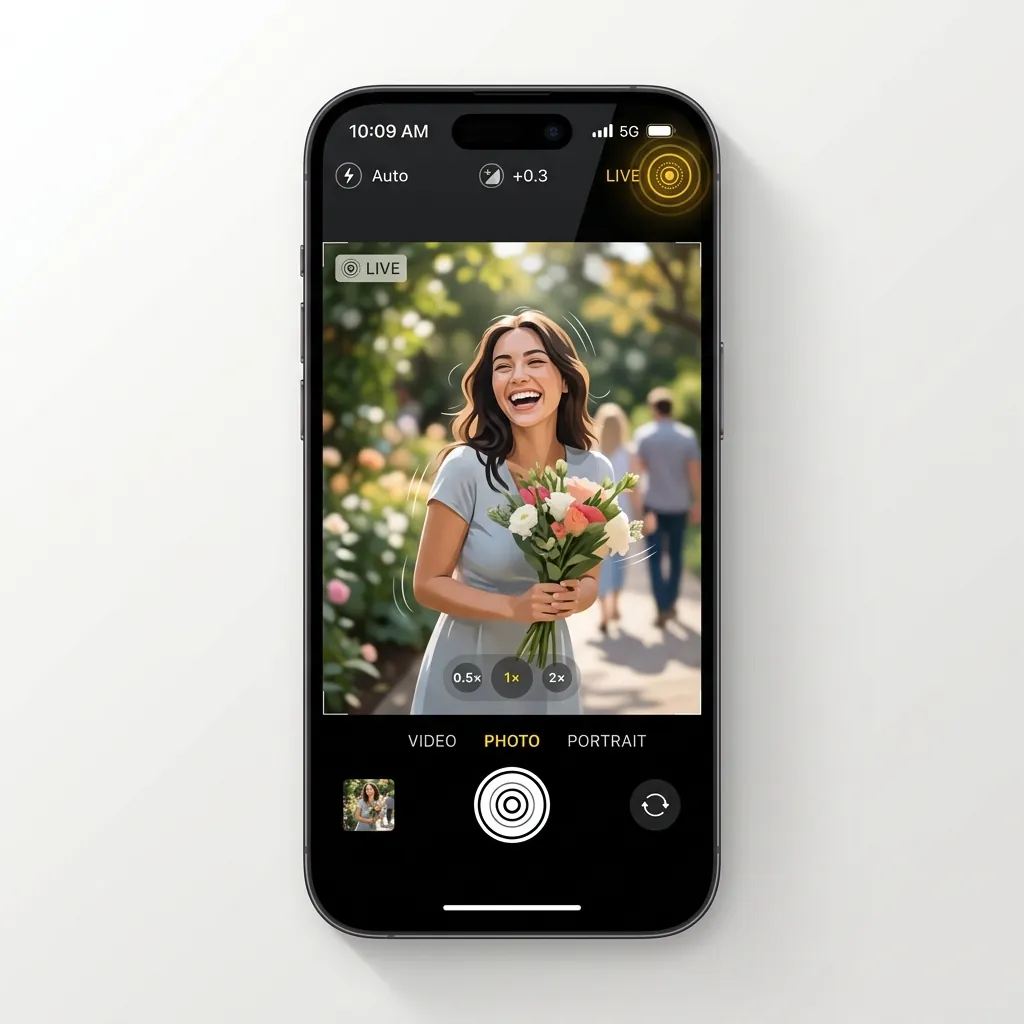
- Open the Camera app and choose Photo mode.
- Look at the Live Photo icon (a set of concentric circles) at the top of the screen. If it has a line through it, tap it to turn Live Photos back on.
- Hold the phone steady for a moment before and after you tap the shutter - the motion is captured around the press, not just at it.
- A captured Live Photo shows a small LIVE badge in the top-left when you open it in Photos.
Because the motion runs around the shutter press, a brief pause before and after the tap gives you a much smoother result.
How to View a Live Photo
- On iPhone or iPad: open the photo and press and hold it to play the motion and sound.
- On a Mac: Live Photos play in the Photos app and Quick Look the same way.
- On Android or Windows: there's no native Live Photo support, so the file usually shows up as a still image. To see the motion on a non-Apple device, convert it first - here's how to view Live Photos on Android.
What You Can Do With a Live Photo
This is where a Live Photo becomes genuinely useful. Once you have one, you can reshape it for almost any purpose - all of the tools below run entirely in your browser, with no upload and no watermark:
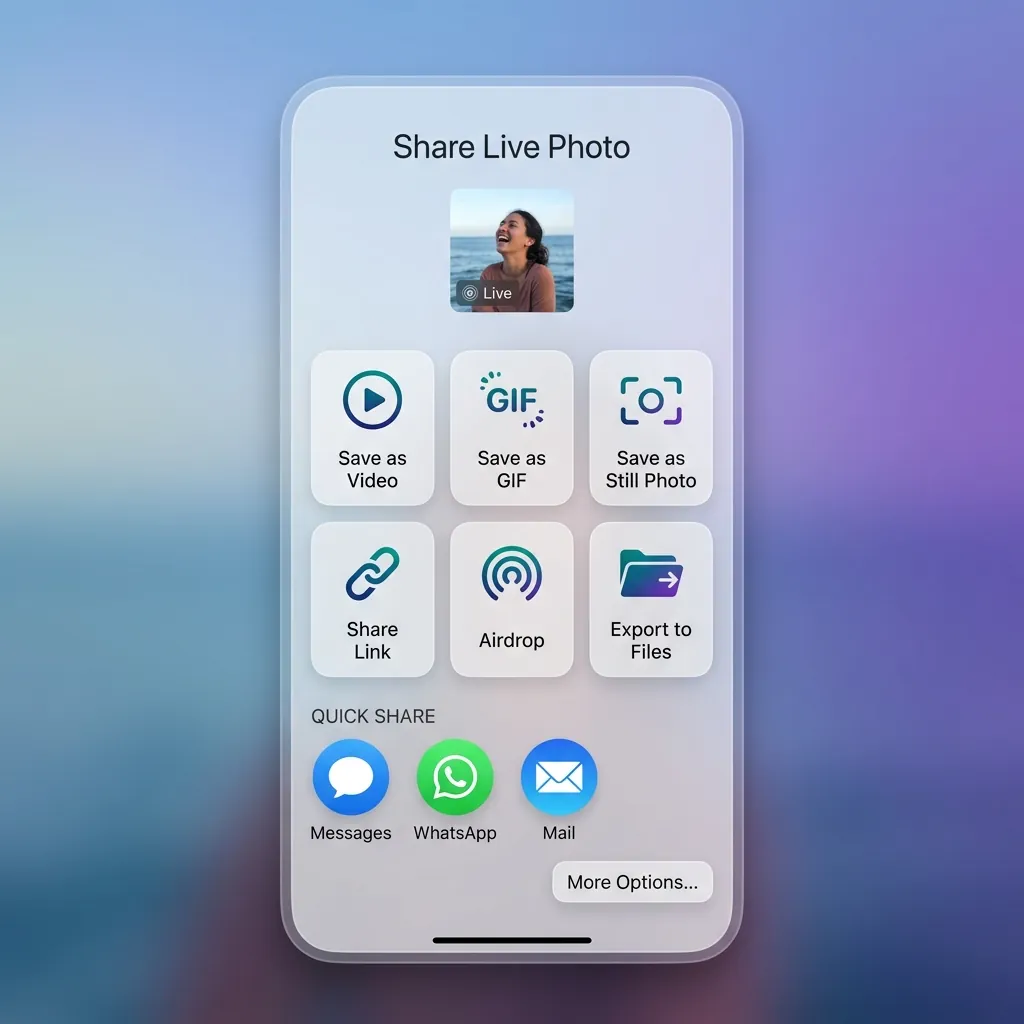
- Share it anywhere as a video. Convert it to MP4 so it plays on Android, WhatsApp, and Instagram with the audio intact: Live Photo to Video or Live Photo to MP4. The full walkthrough is in how to convert a Live Photo to MP4 and keep the audio.
- Turn it into a looping GIF for chats and forums: Live Photo to GIF.
- Pull out a single still frame when you just want the photo: Live Photo to JPG, explained in extract a still photo from a Live Photo.
- Make a phone wallpaper from it: Live Wallpaper Maker.
Don't Have One? Make a Live Photo
You don't need an iPhone camera to create a Live Photo:
- Start from a still picture and add gentle motion with Photo to Live Photo.
- Start from a video clip and trim the best moment with Video to Live Photo.
- Start from an animated GIF with GIF to Live Photo.
For both the photo and video routes side by side, read how to make a Live Photo.
One honest note for wallpapers: a website can create the moving file, but setting it as a true iPhone Lock Screen Live Photo is a system-level action that Safari can't perform. The web does the conversion; the final "set as wallpaper" step happens on the phone. See how to set a Live Photo wallpaper on iOS.
Live Photo vs GIF vs Motion Photo
People mix these up constantly. The short version:
| Format | Has audio? | Plays how? | Works on |
|---|---|---|---|
| Live Photo (Apple) | Yes | Press and hold | iPhone, iPad, Mac |
| GIF | No | Loops automatically | Everywhere |
| Motion Photo (Android) | Sometimes | Tap to play | Samsung, Pixel |
For the full breakdown, see Live Photo vs Video, Live Photo vs GIF, and iPhone Live Photos vs Google/Samsung Motion Photos.
Editing and Fixing Live Photos
A Live Photo isn't locked once it's taken:
- Change the key frame, trim, mute, or add effects (Loop, Bounce, Long Exposure) right in the Photos app. Our guide to editing Live Photos walks through each one.
- Motion stopped working? If a Live Photo lost its movement after sharing, it usually lost its paired video or metadata - here's how to fix a Live Photo that isn't working.
- "Motion is not supported as a wallpaper"? That specific error has its own fix: why iOS rejects some Live Photo wallpapers.
Frequently Asked Questions
How long is a Live Photo? About three seconds total - roughly 1.5 seconds of motion captured before and after you press the shutter.
Is a Live Photo a video? Not exactly. It's a still image paired with a short MOV clip. The still is what you see; the clip is what plays when you press and hold.
Why did my Live Photo lose its motion? Messaging apps and some uploads strip the paired video or its metadata, leaving only the still image. Send the original .livp or MOV to preserve the motion.
Can I use a Live Photo on Android? Android has no native Live Photo support, but you can convert one to MP4 or GIF so it plays anywhere. Start with Live Photo to Video.
Do Live Photos take up more space? Yes - roughly double a normal photo, because they store both the still image and the motion clip.
Can I make a Live Photo without an iPhone? Yes. Use Photo to Live Photo or Video to Live Photo from any device - the file is created in your browser.