Ghostface AI Photo Trend: How to Make the Viral Scream Selfie
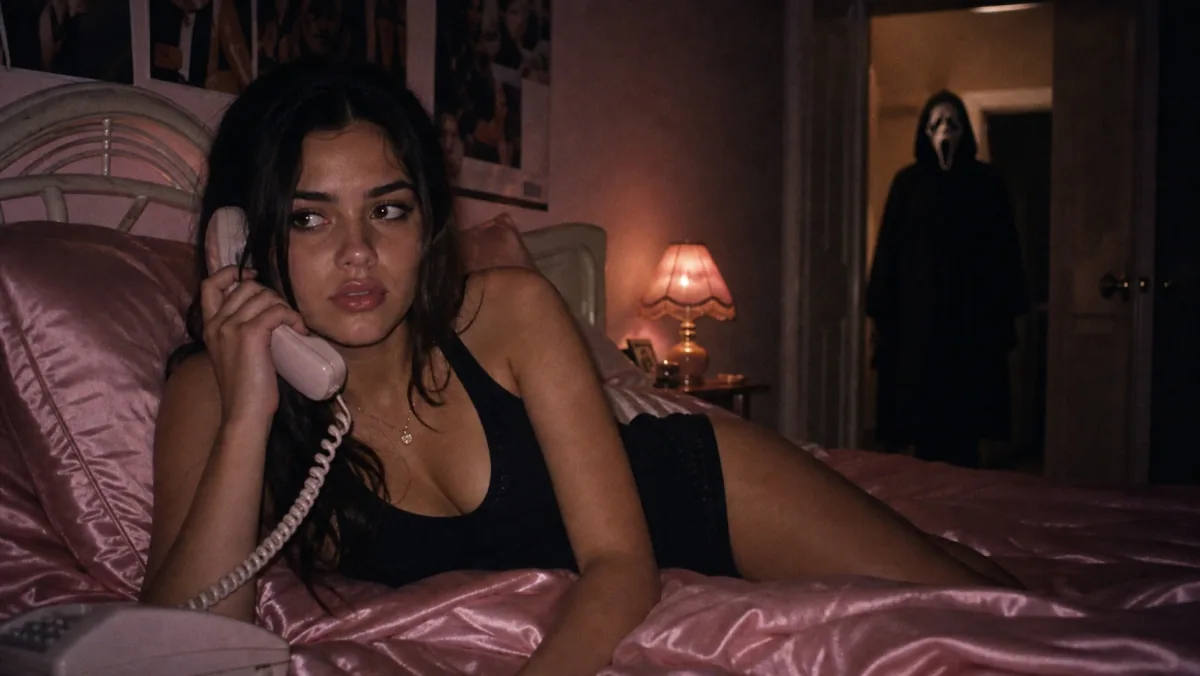
If your feed is suddenly full of grainy 90s-style portraits with Ghostface lurking in a dark doorway, you have found the Ghostface AI photo trend. It blew up across TikTok, Instagram, and Shorts, and it is still climbing - searches for "ghostface live photo" alone jumped over 2,800% in the last week.
This guide explains what the trend is, gives you copy-paste prompts to make one, and shows how to add motion and turn your still AI image into a moving Live Photo lock-screen wallpaper.
What is the Ghostface AI photo trend?
It is an AI image trend: you feed a photo of yourself to an AI image generator (Google Gemini's "Nano Banana" model is the popular one) with a prompt that recreates a moody, Y2K-style portrait - and drops the Ghostface killer from Scream into the background, dimly lit in a doorway, staring at you.
The look mixes two things people love right now: Y2K nostalgia (grain, corded phones, pink satin, butterfly clips) and jump-scare horror. It is having a moment partly because Scream 7 hit theaters in February 2026 and just landed on 4K and Blu-ray on June 16, keeping Ghostface everywhere.
How to make a Ghostface AI photo
The workflow is the same across most AI tools:
- Open an AI image generator that accepts a reference photo - Google Gemini / Nano Banana is the popular pick, but Flux, ChatGPT, or Qwen work too.
- Upload a clear, front-facing photo of your face - no hats or sunglasses.
- Paste one of the prompts below and generate.
- Tweak the outfit, room, and lighting until it looks right.
- Save the image and share it - or keep going and make it move (see below).
Copy-paste Ghostface AI prompts
The two things that make any version read as "the trend": grainy 90s lighting and Ghostface dimly lit in a background doorway. Pick a prompt and edit the details.
Prompt 1 - Bedroom (her):
Create a dreamy Y2K-style portrait of me lying on pink satin bedding, holding a large 90s corded phone in a thoughtful, daydreaming pose. Long dark hair in waves with pink butterfly clips, dainty gold necklaces and chunky gold rings, a tank top and mini skirt with Doc Martens. The room is girly, pink, and dreamy with 90s posters. Simple glam makeup with brown lip gloss. Grainy 90s film look, lit by a single lamp in a dim room at night. The Ghostface killer stands in the doorway of a dim hallway behind me, dimly lit and staring. Background slightly dark and ominous.
Prompt 2 - School hallway (him):
Create a grainy 90s-style portrait of me leaning against lockers in a dimly lit school hallway at night, wearing a plaid button-up shirt over a white tank top, holding a 90s corded phone. Warm overhead light, heavy film grain, moody Y2K mood. The Ghostface killer stands far down the hallway in a doorway behind me, dimly lit and staring, background dark and ominous.
Prompt 3 - Build your own (template):
Create a grainy, VHS-style 90s portrait of me [your pose / outfit] in [your setting], lit by [single lamp / flashlight / neon], heavy film grain, dreamy Y2K mood. The Ghostface killer stands in a dim doorway behind me, dimly lit and staring, background dark and ominous.
Want a video instead of a photo?
The trend has a video version too - the same scene, but Ghostface slowly leans in or steps forward. Some AI tools generate short clips directly from your prompt. If yours only makes a still, do not worry: you can add the movement yourself in the next step, which is also how you get a Live Photo for your lock screen.
Tips for a clean result
- Use a sharp, well-lit face photo. Blurry inputs make the mask and edges look distorted.
- Be specific about lighting (lamp glow, flashlight), mood (Y2K horror, thriller), and setting (bedroom, school hallway, foggy alley).
- Keep Ghostface in the background doorway - foreground masks look fake.
Make it move: turn your Ghostface photo into a Live Photo
A still is good. A still that moves on your lock screen is what actually stops the scroll - a slow push-in toward the doorway makes the Ghostface reveal genuinely creepy. Your AI tool makes the picture; this is the part where you chain it through the LivePhotoTools workflow, all in your browser with no upload:
- Add the dynamic effect. Open Image to Live Photo and apply a slow zoom or pan toward Ghostface in the doorway. This turns the flat AI still into a short motion clip and exports it as a Live Photo.
- Set it as a moving wallpaper. Run it through Live Wallpaper Maker to crop it to a 9:16 lock-screen shape with the motion centered.
- Share it back to the trend. Turn that Live Photo into a clip with Live Photo to Video, or a loop with Live Photo to GIF, and post it to TikTok, Reels, or Stories.
Filmed a real clip of yourself or a friend in the mask instead of generating one? Skip step 1 and start at Video to Live Photo.
If the motion will not play on your lock screen
Set it as a wallpaper and it looks frozen? That is almost always Low Power Mode or Reduce Motion, not your file. Full fix here: why "motion is not supported as a wallpaper" happens. For the basic setup, see how to set a Live Photo wallpaper on iOS.
Hashtags to use
When you post, tag it so it rides the trend: #GhostfaceAI #ScreamAI #GeminiAI #NanoBanana #Y2K #Scream7.
One thing to keep in mind
Ghostface is a copyrighted character, and AI-generated likenesses follow the same rule: making one for your own profile or lock screen is fine for personal use. Re-selling or passing AI Ghostface images off as official artwork is not.
The short version
The Ghostface AI photo trend = a Y2K grainy AI portrait with Ghostface in the doorway, made by uploading your face to an AI generator with one of the prompts above. Want it to move? Add a slow zoom with Image to Live Photo, set it as your lock screen with Live Wallpaper Maker, then share it as a clip with Live Photo to Video.